 Dime Dime Baby
Camera Bounce: Frame a Dime Dime Baby Dance That Moves
Learn how framing, headroom, and a clear source photo help you prepare a Camera Bounce dance video.
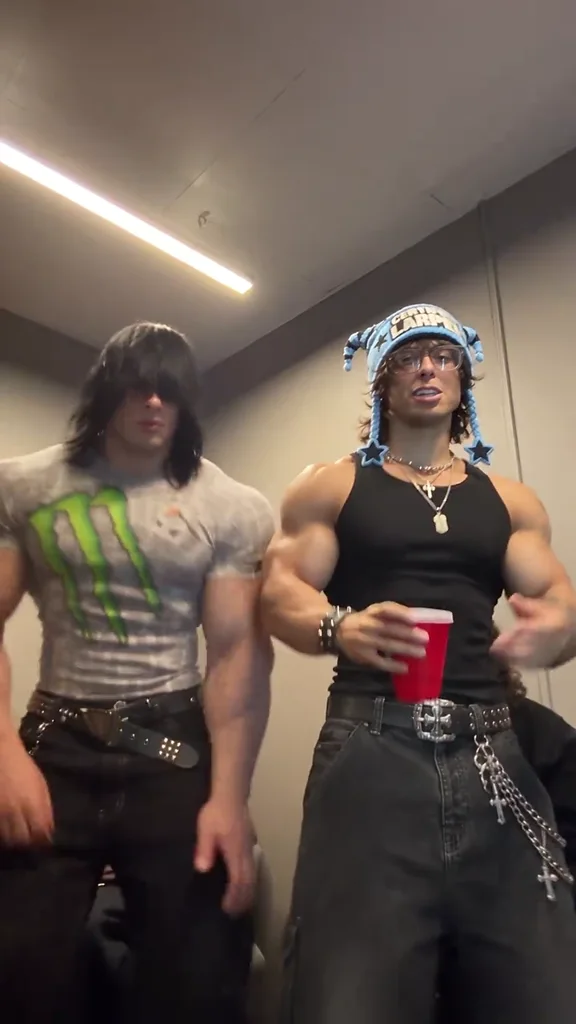
Camera Bounce is a Dime Dime Baby template built around rhythmic movement and expressive hand gestures. It is worth exploring when you want the finished clip to feel active within a vertical frame. The important preparation is not a complicated camera setup. It is choosing a photograph with enough visible body detail and enough space for movement, then checking how the generated performance behaves across the full video.
Understand what the reference actually does
Watch Camera Bounce in the generator before selecting a source image. Pay attention to how the dancer moves relative to the frame. Notice where the head, shoulders, and hands sit at the beginning and where they travel later. This gives you a practical sense of the routine’s energy without assuming that the AI will reproduce its camera work exactly.
The selected video supplies movement guidance. Your photo supplies the person’s appearance. The reference is not an example of a result created from your image, and it does not guarantee identical framing, expressions, or choreography. Think of it as the routine the system is asked to interpret, rather than a finished video into which your face is simply pasted.
Leave headroom and side space
A tightly cropped photograph can look good as a profile picture while providing little room for a dance animation. For Camera Bounce, choose a vertical photo with the person comfortably inside the frame. Keep the head away from the upper edge and avoid cutting through the shoulders or elbows. A clear full-body picture provides more useful context about posture and clothing.
The subject should be one consenting adult with a visible face. Avoid a photograph containing multiple people, overlapping arms, or a large object hiding the torso. If possible, select a simple background that makes the person easy to distinguish. You do not need a studio image, but you should be able to see the face and body clearly under ordinary lighting.
Use a JPG, PNG, or WebP file no larger than 10 MB. Avoid enlarging a tiny screenshot and expecting it to recover missing detail. If the image is already blurred before upload, the generator cannot be relied upon to reconstruct the person accurately.
Select Camera Bounce and check the player
Go to the dance generator, upload the photograph, and click Camera Bounce on the left. The reference player on the right should switch to the same routine. You can compare it with the other templates before deciding. Choosing a template changes the reference used for generation; it is not just a decorative selection.
After confirming photo permission and signing in, submit the task. One generation uses one application credit. The current video settings are 15 seconds, 720p, and vertical 9:16 MP4. The homepage keeps the process focused on your image and dance choice, so there is no model selector to configure.
Allow time for processing and use My Videos to revisit the task if you leave. A temporary polling error is not the same as a confirmed generation failure. Retry the status check before submitting again. Confirmed failed jobs restore their consumed credit; another attempt after a completed video uses a new credit.
Review the frame throughout the routine
When the result is ready, watch the full clip at normal speed. For Camera Bounce, look beyond the center of the image. Are hands disappearing at the sides? Does the head move too close to the upper edge? Is the body still readable when the movement becomes more energetic? These observations help you decide whether the video works as a vertical social post.
Then inspect continuity. Look for unexpected jumps in facial appearance, changes in clothing, or unnatural transitions between poses. AI can alter these details even when the opening frame looks convincing. If you try a new source photo, give the subject more space and remove unnecessary visual clutter rather than assuming the same crop will produce a different framing outcome.
Prepare the export for posting
Download the completed MP4 and review it in the social app where you intend to publish. Keep any added captions away from the face and moving hands. Platform controls and text overlays can cover part of the image, so check the actual posting preview instead of relying only on the downloaded file.
Template previews include their original sound when you press play. The generator uses a separate silent copy for movement guidance, then merges the matching template soundtrack into the finished MP4. Play the completed video from beginning to end to check its sound and movement before posting. The audio is not submitted to the video model. Music permissions remain separate from this technical process; check the rules of your destination platform before publishing.
Keep the performance clearly fictional
Camera Bounce is intended for creative, lighthearted clips involving people who agree to the use of their photographs. Do not upload minors or public figures. Explain the joke when sharing with friends and identify the result as AI-generated. A simple caption and a well-framed performance are more useful than pretending the video documents a real dance session.