 Dime Dime Baby
Party Groove: Give Your Photo a Playful Dance Moment
Prepare a portrait for Party Groove, compare shoulder and hand movements, and turn your photo into a vertical dance clip.
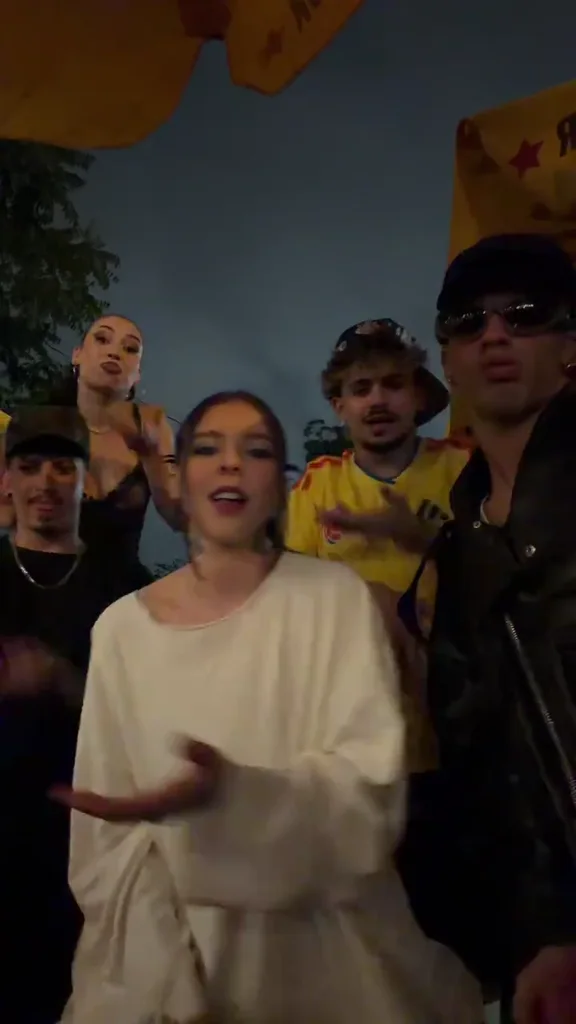
Party Groove is the Dime Dime Baby template to explore when you want a cheerful performance led by shoulder movement and playful gestures. The goal is a short dance moment with an easygoing party feeling, rather than a complicated editing project. You provide one photograph, select the reference routine, and let the generator create a new video. A little care with your source photo and final review can make the workflow much easier to understand.
Read the movement before choosing an image
Select Party Groove in the generator and watch the reference player. Focus on the relationship between the shoulders, arms, and upper body. Notice when gestures travel away from the torso and when the dancer returns to a relaxed position. Those transitions help you decide whether your photograph gives the model enough visible information about the person’s clothing and posture.
The reference clip demonstrates a routine; it is not a generated customer result. Selecting it asks the system to use that video for movement guidance while using your uploaded photo for appearance. The model can reinterpret timing and body position, so the final performance may not reproduce every gesture precisely.
Keep shoulders and hands visible
For Party Groove, choose a clear image of one adult who has agreed to the animation. A vertical full-body photo remains a useful starting point, but pay particular attention to the shoulders and arms. Large bags, crossed arms, crowded backgrounds, or another person standing directly beside the subject can make those details harder to read.
Good lighting matters more than elaborate styling. Use a photo where the face and clothing have visible detail, without a heavy filter hiding their shape. Leave space around the person instead of cropping just beyond the shoulders. If your only image is an extreme close-up, consider taking a new photograph with a wider view before spending a credit.
The uploader accepts JPG, PNG, and WebP files up to 10 MB. Keep the image natural and avoid adding decorative text or stickers over the face and hands. The generator is creating movement from visual references, not removing obstacles from a finished poster.
Use the left-hand template controls
Open the generator, upload the photo, and choose Party Groove from the controls on the left. The corresponding video appears on the right. This preview is a useful final check: the button you selected and the reference being played should describe the same dance.
Confirm the photo permission statement and sign in before starting. A generation costs one application credit and produces a 15-second, 720p video in vertical 9:16 MP4 format. The credit price is the same across the four current templates. You do not need to choose a video model or change technical settings to use Party Groove.
While the task processes, allow for differences in queue time. Your saved task remains accessible through My Videos. If the browser reports a temporary status error, refresh the task status rather than immediately creating a duplicate. Confirmed failed generations return the consumed credit; a new attempt after a completed result is a separate generation.
Check the transitions between gestures
A convincing Party Groove clip depends on how gestures connect. When the finished video is ready, watch from beginning to end and inspect the shoulders, wrists, and face during movement. A single attractive frame does not tell you whether an arm remains consistent as it crosses the body or returns to the side.
Look for changes in clothing details as well. Sleeves, collars, and accessories can draw attention when they suddenly change shape. If an issue makes the clip unsuitable, a simpler photograph with fewer overlapping objects may be a better starting point for another attempt. AI outputs vary, and no source image guarantees a particular result.
Match the sound in your social editor
Template previews include their original sound when you press play. The generator uses a separate silent copy for movement guidance, then merges the matching template soundtrack into the finished MP4. Play the completed video from beginning to end to check its sound and movement before posting. The audio is not submitted to the video model. Music permissions remain separate from this technical process; check the rules of your destination platform before publishing.
Share the moment with context
Party Groove can be a playful way to animate a celebration photo or create a friendly group-chat surprise, provided the person shown agrees. Keep the caption specific to the occasion and avoid implying that the subject actually performed the dance. Do not use photos of minors or public figures, and do not frame a generated clip as evidence of a real event. The best version is a short, clearly understood joke that the subject enjoys too.